


Desktops and home screens are like the lobbies for a building. They are the starting point from which you navigate to other areas of your digital space. Ideally your home screens are clean, inviting, and set a productive tone for your digital interactions. Today’s post is about using wallpapers to help bring you joy from your home screens.


The best motivator for keeping a clean screen is to have a background that brings a smile to your face. You’re more likely to keep your desktop clear if cluttering means covering a picture you like!
I recommend creating a Wallpapers folder of curated images. I include images from games, TV shows, and movies that I like. Part of the fun of finishing a piece of entertainment is searching for wallpapers to add to my collection. You could also include family photos, travel pictures, or other personal highlights. Once you set up the folder, you can configure your device to rotate through the images in slideshow mode. I set the picture to change every 30 minutes to help me keep track of time passing.
Here are the instructions to set your background on common operating systems:
- Windows 10: Right click the desktop and select “Personalize”. Choose “Slideshow” from the drop-down under “Background”, and select the folder of pictures you want to use. The official instructions are on the Windows support page.
- Mac: Right click on the desktop and select “Change Desktop Background…”. Choose “Folders” in the menu on the left and select the folder of pictures you wish to use. To set up slideshow mode, check the “Change picture” option and select desired duration. The official instructions are on this Apple Support page.
- Android: Hold on the home screen and select “Styles & wallpapers” from the pop up menu. As of July 2021 you can’t set an auto-rotation of personal photos, but you can select from a curated group that changes the picture every day. The official instructions vary depending on device, but you can the latest instructions by performing an internet search for “Android change wallpaper”.
- iOS (iPhone): Go to Settings and select Wallpaper. The official instructions are on this Apple Support page.

The Windows background settings screen. 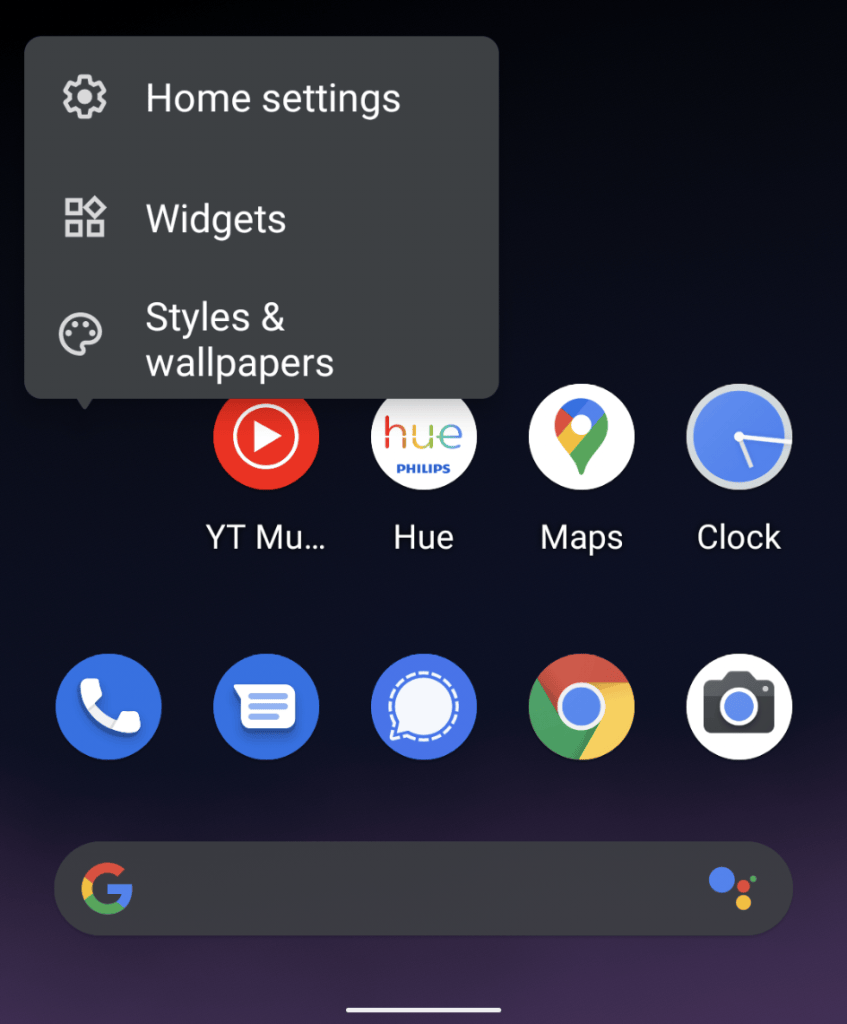
The Android pop-up that has the “Styles & Wallpapers” option to change background.
I hope you learned something new today! What do you have in your Wallpapers folder? Comment below or reach out on social media and let me know!
Be First to Comment